TutorFlow User Guide
TutorFlow is a desktop application for independent private tutors who teach around 20 students at several venues. It keeps students, lessons, homework, follow-up tasks and payments in one place, and answers "what does today require, what does each student need, and who still owes me" through a Command Line Interface (CLI) while retaining the benefits of a Graphical User Interface (GUI).
Quick start
Ensure that Java
25or later is installed on your computer.
Mac users: Ensure you have the precise JDK version prescribed here.Download the latest
.jarfile from the TutorFlow releases page.Copy the file to the folder you want to use as the home folder for TutorFlow.
Open a terminal,
cdto the folder containing the JAR file, and runjava -jar tutorflow.jar.
A GUI similar to the one below should appear in a few seconds. A new data set starts empty, so your own list will have no students until you add some. The screenshot below shows a list that already contains students.
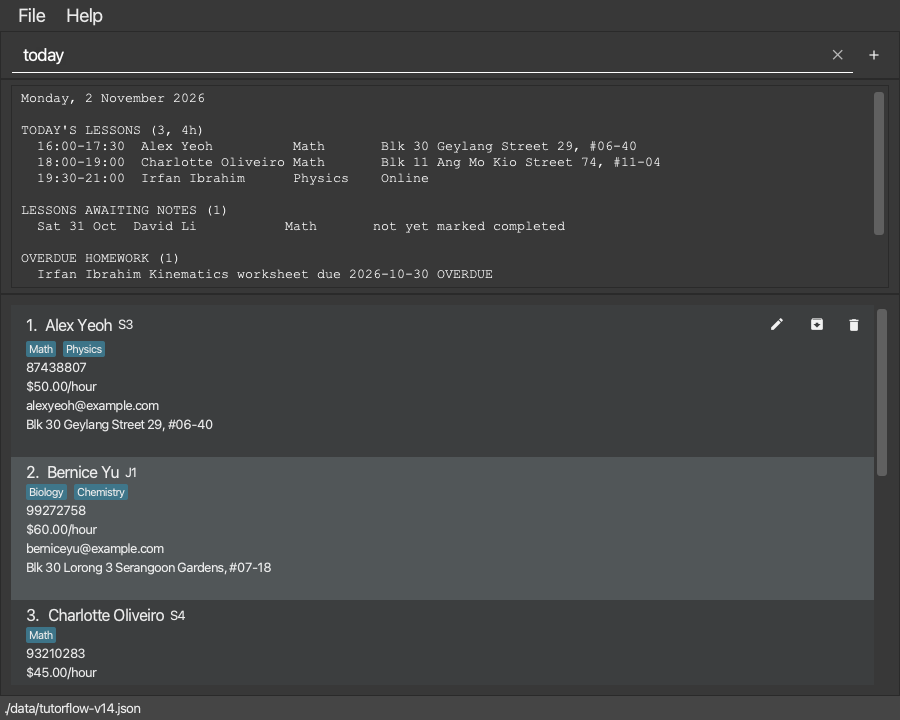
Type a command in the command box and press Enter to execute it. For example, type
helpand press Enter to see the list of commands.
To explore a new data set, load the sample students withdemo confirm. Some example commands you can try:demo confirm: Loads sample students into an empty data set.add n/John Doe p/98765432 l/S4 s/Math r/50: Adds a student namedJohn Doe, who is in Secondary 4, learns Math and pays $50 per hour.delete 1: Deletes the 1st student shown in the current list.clear confirm: Deletes all students, lessons, homework, tasks, and financial history.exit: Exits the app.
Refer to the Features section below for details of each command.
Features
Notes about the command format:
Words in
UPPER_CASEare the parameters to be supplied by the user.
For example, inadd n/NAME, replaceNAMEwith a value such asJohn Doe.Items in square brackets are optional.
For example,n/NAME [e/EMAIL]can be used asn/John Doe e/john@example.comor asn/John Doe.Items followed by
...can appear at least once and, where the command allows it, additional times.
For example,s/SUBJECT...inaddmust be written at least once, such ass/Mathors/Math s/Physics.Items such as
week/andall/are flags: write them on their own, without a value.
For example,agenda week/is accepted, butagenda week/yesis rejected.Parameters can be in any order.
For example, if the command specifiesn/NAME p/PHONE_NUMBER,p/PHONE_NUMBER n/NAMEis also acceptable.Each prefix can normally appear only once, in any order. The exception is
s/inaddandedit, which can be repeated to give several subjects. Repeating another prefix is rejected.listaccepts academic filters and archive flags; invalid or extra arguments are rejected.
For example,student list l/S4 s/Mathshows active S4 Math students.today,dues,save,undoandexittake no parameters. If you type anything after them, TutorFlow shows an error and does not run them.
For example,exit nowis rejected, so a mistyped command cannot close the app.Command words are not case-sensitive:
LIST,Listandlistare the same command, and so areLESSON ADDandlesson add. The same goes for the keywordconfirm. Parameter prefixes such asn/andst/must still be in lower case, and the values you type keep their case.A mistyped parameter prefix is reported as
Unknown prefix for this command: name/.instead of being absorbed into the previous value and blamed on that field. This includes a prefix that belongs to a different command, such asamt/inlesson add, and an upper-case spelling such asN/. A lower-case single letter that is not a parameter, such asq/, is reported the same way, except inside a description, note, feedback or remark, where text such asc/ois kept as written.Slash-bearing text is still allowed where it is ordinary content. A name or venue accepts
c/o,d/o,s/o,n/a,w/o,h/o,m/oandBlk/123. Notes, feedback, reasons and remarks may quote a full command, including tokens such asn/ordesc/. A description accepts an unaccepted short prefix such asp/3as prose, but still rejects a field-name spelling such asname/and the retireda/.The command box remembers the commands you have entered in this session. Press
Upto bring back an earlier command andDownto move forward again, as in a terminal. Down past the newest command returns to what you were typing.
When a command fails, it stays in the command box, so you can correct it instead of typing it all again.While the command box contains text, a cross button appears at its right edge. Click it to clear the box and return to typing; it disappears when the box is empty.
If you enter an unknown command, such as
foo, TutorFlow showsUnknown command. Type "help" for list of commands.Typehelpto see the available commands.If you are using a PDF version of this document, be careful when copying and pasting commands that span multiple lines as space characters surrounding line-breaks may be omitted when copied over to the application.
Students
Adding a student: add
Adds a student to TutorFlow.
Format: add n/NAME p/PHONE_NUMBER l/LEVEL s/SUBJECT... r/RATE [e/EMAIL] [v/VENUE]
NAMEis 1-100 printable characters after trimming and must contain at least one letter. It may contain letters in any language (such asJosé Álvarezor陈伟明), digits, spaces and. , ' ( ) / - @, such asTan Wei Ming (twin A),Priya d/o KumarorJohn @ Tan. It does not matter how an accent is typed, soJoséwritten with one character and with a letter and a separate accent is the same name. Avoid typing a/right after a space when it would look like a prefix, such ass/o, because TutorFlow reads it as the start of the next parameter.NAMEandVENUEreject a field-name typo such asname/oremail/instead of absorbing it into the value. Ordinary relationship or address forms such ass/o,d/o,c/o,n/a,w/o,h/o,m/oandBlk/123remain valid.LEVELis one ofP1toP6(primary),S1toS5(secondary) orJ1toJ2(junior college). It is not case-sensitive, sos3is the same asS3.PHONE_NUMBERhas 8 to 15 digits and can start with+, for example91234567or+6591234567. Spaces and hyphens between the digits are allowed and are removed, so9123 4567is stored as91234567.SUBJECTis free text of up to 30 characters in any language, digits, spaces,&and-, such asMath,English & Literatureor华文. Subjects are not case-sensitive. When you enter one, its first letter is capitalized automatically, somathis saved and shown asMath. The rest of what you type keeps its case.RATEis the amount charged per hour, from0to9999.99with at most 2 decimal places. It is shown in dollars. A leading$is accepted, so50,50.00and$50are the same rate.VENUEis where the student is usually taught, up to 100 characters.EMAILcan be at most 254 characters (an emoji or other symbol counts as one).- The old address prefix
a/is no longer supported. Usev/for a student's venue, such asv/2902 Yishun. Ana/parameter is rejected as an unknown prefix instead of being read as part of the preceding email or venue. - A mistyped prefix such as
name/,phone/,sub/,email/orvenue/is named in anUnknown prefix for this commanderror. Correct the spelling instead of looking for a fault in the preceding field. - Extra spaces in a
NAMEare ignored, soJohn Tanis stored asJohn Tan. - A student can have at most 10 different subjects, so a command with more than 10
s/SUBJECTvalues is rejected. The same limit applies when you edit a student. - Two students are duplicates if they have the same phone number and a name that matches when letter case and extra spaces are ignored. A duplicate is not added.
- Two different students can share a name, for example two students called
Tan Wei Mingwith different phone numbers. TutorFlow adds the student and shows a note, so that you can spot a double entry.
Tip: A student must have between 1 and 10 subjects. The email and the venue are optional.
Examples:
add n/John Doe p/98765432 l/S4 s/Math r/50add n/Betsy Crowe p/98761234 l/J1 s/Physics s/Chemistry r/62.50 e/betsycrowe@example.com v/Blk 123 Bishan St 13
Listing students: list
Shows the students in TutorFlow. Archived students are hidden unless you ask for them.
Format: list [l/LEVEL] [s/SUBJECT] [archived/|all/]
- With no parameters, shows every active student and replies
Listed active students. l/LEVELshows only the students at that level, ands/SUBJECTonly those who take that subject. Neither is case-sensitive. With both, a student must match both. A filtered list replies with the count, such asListed 2 matching student(s).archived/shows only archived students, andall/shows active and archived students together. Use at most one of them, with nothing after the/.- The students are numbered again, and other commands use the new numbers.
student listworks the same way.
Examples:
listShows all active students.list l/S3 s/MathShows the active S3 students who take Math.list archived/Shows only the archived students, for example before you restore one.
Archiving a student: archive
Takes a student who has stopped lessons out of the active list, while their lessons and payment history stay available.
Format: archive INDEX
INDEXis the number in the displayed student list.- The student no longer appears in
list.list archived/,list all/andfindstill show them, with(archived)after their name on the student card, andviewshowsViewing: NAME (archived). - Their lessons, homework, charges and payments are kept, and so are their upcoming lessons in the agenda. If they owe money,
duesstill lists them, marked(archived). - An archived student cannot be given a new lesson, weekly series or homework. TutorFlow asks you to restore them first.
- Archiving a student who is already archived gives
This student is already archived. student archive INDEXworks the same way.
Examples:
archive 3Archives the 3rd student and replies, for example,Archived: Chen Hao. Lessons and history are retained. Run 'list' to refresh the student list.
Restoring an archived student: restore
Brings an archived student back to the active list.
Format: restore INDEX
- First show the archived students with
list archived/orlist all/, then use the number shown there. - Restoring a student who is already active gives
This student is already active. Use student list archived/ before restoring. student restore INDEXworks the same way.
Examples:
list archived/, thenrestore 1Restores the first archived student, for exampleRestored: Amy Tan. Lessons and history are retained. Run 'list' to refresh the student list.
Editing a student: edit
Edits an existing student in TutorFlow.
Format: edit INDEX [n/NAME] [p/PHONE_NUMBER] [e/EMAIL] [l/LEVEL] [s/SUBJECT]... [r/RATE] [v/VENUE]
- Edits the student at the specified
INDEX. The index refers to the index number shown in the displayed student list. The index must be a positive integer 1, 2, 3, ... - At least one of the optional fields must be provided.
- Existing values will be updated to the input values.
- An edit that would leave every detail exactly as it is, such as
edit 1 n/Alex Yeohfor a student already namedAlex Yeoh, is rejected withThe student already has these details.Changing only the letter case, such ase/ALEX@example.com, is a change. - To remove an optional email or usual venue, give an empty
e/orv/, for exampleedit 1 e/ v/. Omitting a prefix leaves that value unchanged. Required fields cannot be cleared. Clearing contact details preserves the student and all linked history; existing lessons keep their recorded venues. - When editing subjects, all of the student's existing subjects are replaced; adding subjects is not cumulative. A student must keep at least one subject.
- The displayed student list stays as it was after an edit, so the index numbers do not change. The exception is a student who no longer matches the current
findorlistfilter after the edit (for example, a new name that thefindkeywords do not match): that student leaves the displayed list and the numbers below shift. Runlistto show all active students again. - After changing a student's name or phone number, run
lesson list st/STUDENT_INDEXagain before using lesson numbers. - The values for the email, level, subjects, rate and venue follow the same rules as for
add, so an email can be at most 254 characters. - If the edit gives the student the name of another student, it is accepted and TutorFlow shows a note. If the phone number is also the same as that student's, the edit is rejected as a duplicate.
Examples:
edit 1 p/91234567 e/johndoe@example.comEdits the phone number and email address of the 1st student to be91234567andjohndoe@example.comrespectively.edit 2 l/S4 s/Math s/ChemistryChanges the 2nd student to Secondary 4, and the subjects toMathandChemistry.
Locating students by name: find
Finds students whose names contain any of the given keywords.
Format: find KEYWORD [MORE_KEYWORDS]
- The search is case-insensitive; for example,
hansmatchesHans, andışıkmatchesIşık, using the same Unicode case equivalence as student identity. Accents remain significant. - Keyword order does not matter; for example,
Hans BomatchesBo Hans. - The search considers only names.
- A keyword matches any part of a name; for example,
HanmatchesHansandJohan, andweimatchesTan Wei Ming. - A keyword can be up to 100 characters long.
- Students matching at least one keyword are returned (an
ORsearch); for example,Hans BoreturnsHans GruberandBo Yang.
Examples:
find JohnreturnsjohnandJohn Doefind alex davidlistsAlex YeohandDavid Liif those students are recorded. If only those two students match, the result says2 student(s) listed!and the student list shows their current details with new index numbers.
Viewing the overview of a student: view
Shows what you need to prepare for one student, on one screen.
Format: view INDEX
- Shows the student at the specified
INDEX. - The index refers to the index number shown in the displayed student list.
- The index must be a positive integer 1, 2, 3, ...
- The overview shows, in this order:
- the student's level, subjects, rate, phone number and, if recorded, email, usual venue and remark
- the next lesson: the date, time, subject and venue of the first scheduled lesson from today onwards, and its preparation notes, if any. A lesson earlier today stays the next lesson until you mark it completed or missed
- the recent lesson notes: the notes of the 3 most recent completed lessons, newest first
- the lesson history: how many lessons are completed, cancelled and missed
- the balance: what the student owes, as
OUTSTANDING $X.XX, or the credit from paying ahead, asIN CREDIT $X.XX. A student who owes nothing showsOUTSTANDING $0.00. - the outstanding homework: assignments awaiting submission or review, with due dates and feedback
- A section with nothing to show says so, for example
No upcoming lessons., instead of disappearing. - An archived student is marked after their name, as in
Viewing: Chen Hao (archived), so that you can tell them apart from active students when you reach them throughlist all/orfind. - The command only shows information. It does not change the student list, so the indexes you use for other commands stay the same.
- In a narrow window, the student card shortens a long name, venue or remark with
…. The overview always shows them in full.
Example: view 1 for a student with lessons, notes, a balance and homework:
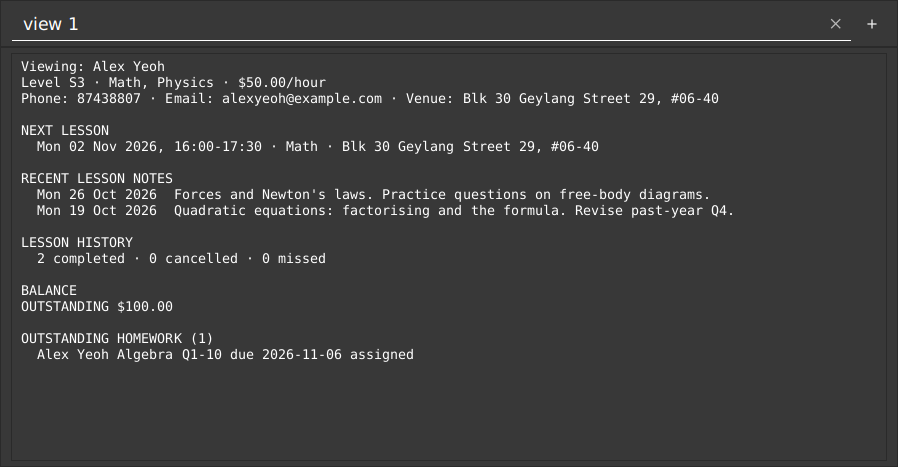
The result box is made taller in this picture so that the whole overview fits. In TutorFlow, scroll the result box to see the rest.
Examples:
listfollowed byview 2shows the overview of the 2nd student.find Betsyfollowed byview 1shows the overview of the 1st student in the results of thefindcommand.
Adding a remark to a student: remark
Sets a free-text remark on a student, such as a preference or something to remember.
Format: remark INDEX r/REMARK
- Sets the remark of the student at the specified
INDEX, which is the index number shown in the displayed student list and must be a positive integer 1, 2, 3, ... - The new remark replaces the old one and can be at most 1000 characters (an emoji or other symbol counts as one). Writing
r/with nothing after it removes the remark. - Surrounding spaces are removed and repeated spaces inside the remark are collapsed into one, as for other free text.
- The displayed student list stays as it was after a remark, so the index numbers do not change.
- A remark is shown in the student's card and in
view.
Examples:
remark 1 r/Prefers morning lessonssets the remark of the 1st student.remark 1 r/removes the remark of the 1st student.
Deleting a student: delete
Deletes the specified student from TutorFlow.
Format: delete INDEX [confirm]
- Deletes the student at the specified
INDEX. - The index refers to the index number shown in the displayed student list.
- The index must be a positive integer 1, 2, 3, ...
- A student with no lessons, homework, follow-up tasks, charges or payments is deleted immediately.
- Deleting a student also deletes all of their lessons, homework (including feedback), follow-up tasks and financial history. If the student has any linked records, TutorFlow does not delete anything yet. It shows the student's name, phone number, linked counts and, if there are any, a warning about upcoming lessons and commitments, and asks you to repeat the command with
confirm. - The keyword
confirmcan be written in any letter case, such asCONFIRM. - One deletion action can be reversed with the
undocommand.
Examples:
listfollowed bydelete 2deletes the 2nd student, if they have no linked records.delete 3on a student with 12 lessons shows a prompt;delete 3 confirmthen deletes the student and the 12 lessons.find Betsyfollowed bydelete 1deletes the 1st student in the results of thefindcommand.
Sorting students by name: sort
Sorts all students by name, ignoring upper and lower case.
Format: sort [asc|desc]
ascsorts from A to Z anddescsorts from Z to A. If no order is given,ascis used.- All active students are shown after sorting, even if the list was filtered by an earlier
findcommand. Archived students stay hidden; uselist all/to show them. - TutorFlow keeps this order. A student you add later, or whose name you change, takes their place in it, so the list stays sorted.
- The order is saved, so it is still used the next time you open the app. Until you first use
sort, new students are added at the end of the list.
Examples:
sortsorts all students from A to Z.sort descsorts all students from Z to A.
Lessons
Scheduling a lesson: lesson add
Schedules a lesson for a student.
Format: lesson add st/STUDENT_INDEX [s/SUBJECT] d/DATE t/TIME [dur/MINUTES] [v/VENUE] [past/]
STUDENT_INDEXis the index number shown in the displayed student list, and must be a positive integer 1, 2, 3, ...DATEis written in any of the ways to write a date, such as2026-12-22,22/12/2026or22 Dec 26, or as the wordtodayortmr(tomorrow), in any letter case, which TutorFlow works out from the date on your computer. It must be today or later, and no more than 2 years ahead, which catches a mistyped year.past/is a flag that records a lesson that has already taken place, so that you can complete it and bill it. Withpast/, a date before today is accepted, up to 2 years ago, but a date after today is rejected, so usepast/only for a lesson that has already taken place. Without it, a date in the past is rejected, because that is usually a mistyped year. Every other rule still applies.- Each lesson remembers the student's level at the time of booking, so that
lesson listcan still show it after the student moves up a level. Lessons that were booked before this version showunknown (not recorded). TIMEis written in 24-hour time, such as16:30.4:30pmand1630are also accepted;4pmand16.30are not.MINUTESis the length of the lesson, from15to480in steps of15. If it is left out, it is60.SUBJECTmust be one of the student's subjects, and is not case-sensitive. If the student has only one subject, it can be left out. If the student has several, it must be given.VENUEis up to 100 characters. If it is left out, the student's usual venue is used, or—if the student has none.- A lesson must end on the day it starts, so
t/23:00 dur/120is rejected. Split it into two lessons. - Two lessons are duplicates if they have the same student, subject, date, time and duration. A duplicate is rejected.
- Adding a lesson keeps the current day, week or student lesson filter. If the new lesson shifts existing lesson numbers, the result shows the complete current lesson list with fresh numbers. Use those numbers for your next lesson command. A new lesson that is not part of the displayed lesson list does not appear in it, so run
agendaorlesson list st/STUDENT_INDEXto see and number it before you uselesson done,lesson moveorlesson cancel.
Overlaps only warn: if the new lesson overlaps another scheduled lesson by at least one minute on the same date, it is still scheduled and the result lists the lessons it overlaps with. Lessons that end exactly when the next one starts do not overlap. Cancelled lessons are ignored.
Examples:
lesson add st/1 s/Math d/2026-12-22 t/16:30 dur/90Schedules a 90-minute Math lesson for the 1st student at the student's usual venue.lesson add st/3 d/2026-12-23 t/19:00 v/OnlineSchedules a 60-minute lesson online for the 3rd student, in the only subject that student takes.lesson add st/3 d/tmr t/19:00 dur/60 v/OnlineSchedules a lesson for tomorrow.lesson add st/1 d/2026-10-12 t/16:30 past/Records a lesson on 12 October 2026 that has already happened, even though that date is past. This example works only when today is after that date.
Scheduling a weekly series: lesson repeat
Schedules the regular weekly lessons of a student in one command.
Format: lesson repeat st/STUDENT_INDEX [s/SUBJECT] d/START_DATE t/TIME [dur/MINUTES] [v/VENUE] count/COUNT [every/WEEKS]
- The student, subject, date, time, duration and venue are written as for
lesson add, except thatpast/is not accepted: a series starts today or later. - A series cannot be scheduled for an archived student: restore the student first with
restore INDEX, as forlesson add. COUNTis the number of lessons, from2to52.WEEKSis the gap between two lessons in weeks, from1to12; ifevery/is left out, it is1. Every lesson must fall within 2 years of today.- The first lesson is on
START_DATE. Each later lesson is at the same time of day,WEEKSweeks after the one before it. - The series is all or nothing. TutorFlow checks every lesson first, and if any of them is invalid or is a duplicate of a lesson that already exists, it adds none of them and says
This exact lesson already exists. No occurrences were added. - Each lesson is a full, independent lesson: you can move, cancel, complete or bill it on its own. The lessons are linked only so that a series can be cancelled together.
- The new lessons are not added to the lesson list that is displayed, so run
agendaorlesson list st/STUDENT_INDEXto see and number them. If adding the series changes the numbers on screen, the result ends withLesson numbers have changed. Current lesson list:and the new numbering, aslesson adddoes. If more than 30 lessons are listed, only the first 30 are shown, followed by how many more there are; runlesson listoragendato see every number. - Lessons that overlap another lesson only produce a warning, as for
lesson add. If many lessons of the series overlap, the warning is summarised in one line.
Examples:
lesson repeat st/3 d/2026-12-03 t/16:00 count/4Schedules four weekly lessons, starting on 3 December 2026.lesson repeat st/3 d/tmr t/17:00 dur/90 count/10 every/2Schedules ten lessons two weeks apart, starting tomorrow. The result saysScheduled 10 occurrences, every 2 weeks.
Viewing the agenda: agenda
Shows the lessons of a day or of a week, in the order that they take place.
Format: agenda [d/DATE] [week/]
- Without
d/DATE, it shows today.DATEis written as forlesson add. The year must be from 2000 to 2099. - With
week/, it shows the Monday to Sunday week that contains the date, one day after another. A day without lessons shows— no lessons —. - Each line shows the lesson number, the time, the student, the subject, the venue, and the status if the lesson is not simply scheduled. Lessons that overlap another lesson are marked
⚠ overlaps. - A student who shares a name with another student is shown with the last four digits of their phone number, such as
Alex Yeoh (phone ending 4567), so that you can tell their lessons apart before using a lesson number. If the last four digits are the same too, a short reference is added, such asAlex Yeoh (phone ending 4567, ref 7b04d3c8). An archived student is marked, such asDavid Li (archived). - Cancelled lessons are listed but are not counted in the number of lessons and the total time.
- The lesson numbers are the ones that
lesson move,lesson cancel,lesson doneandlesson missedtake, so runagendaorlesson listfirst and then use the number you see. - Lessons are numbered in time order. If moving, cancelling, completing or marking a lesson missed changes the displayed numbers, the result includes
Lesson numbers have changed. Current lesson list:and the refreshed list. If every lesson keeps its number, for example when a lesson only changes its time or is cancelled but stays in the list, the numbers are not shown again. Use those new numbers for your next command. If more than 30 lessons are listed, only the first 30 are shown, followed by how many more there are; runlesson listoragendato see every number. Runningagendaorlesson listagain also refreshes the list. - A week with more than 200 lessons shows the first 200 rows and a line saying how many were omitted, so the result box stays responsive.
- A day without lessons is not an error: it shows
No lessons on Tue 22 Dec 2026.
Example: agenda d/2026-11-02 week/ for a week with lessons on four of the seven days:
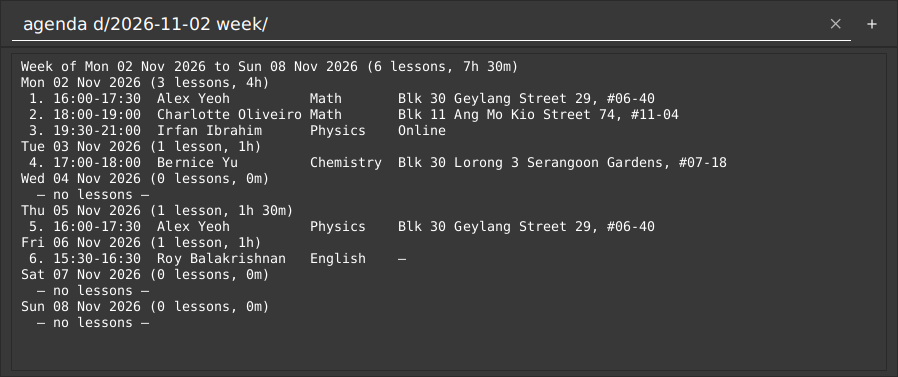
The result box is made taller in this picture so that the whole week fits.
Examples:
agendaShows today's lessons.agenda d/2026-12-22 week/Shows the week of Monday 21 December 2026.
Viewing today's dashboard: today
Shows what today requires: today's lessons, past lessons not yet marked completed, overdue homework, and the students who owe money. TutorFlow also shows this when it starts.
Format: today
- The first section,
TODAY'S LESSONS, shows the number of lessons today and their total time, followed by the time, student, subject and venue of each lesson. Lessons that overlap another lesson are marked⚠ overlaps. Cancelled lessons are left out. - The second section,
LESSONS AWAITING NOTES, shows the scheduled lessons from earlier days that were not marked completed, the most recent first. - In both lesson sections, a student who shares a name with another student is shown with the last four digits of their phone number, such as
Alex Yeoh (phone ending 4567), and an archived student is marked, such asDavid Li (archived), as in the homework and dues sections. If the last four digits are the same too, a short reference is added, such asAlex Yeoh (phone ending 4567, ref 7b04d3c8).agendauses the same labels. - The third section,
OVERDUE HOMEWORK, shows assigned work due before today, orNo overdue homework.. Runhw list overdue/to get selectable numbers. - The fourth section,
DUES, is the list thatduesshows: how many students owe money and the total, then each student's amount and the age of their oldest unpaid charge, such asoldest unpaid 2 daysoroldest unpaid 1 day, the oldest first. If nobody owes money, it showsNo outstanding balances. Everyone is up to date. - The lessons on the dashboard are not numbered. To complete, move or cancel one of them, first run
agendafor today's lessons, orlesson list st/STUDENT_INDEX all/for a lesson awaiting notes, and use the number shown there. Right after TutorFlow starts, no lesson has a number yet, so a command such aslesson done 1is refused with a message that tells you to runagendaorlesson list. - All four sections are always shown. An empty section is not an error: it shows
No lessons today.,All past lessons are recorded.,No overdue homework.orNo outstanding balances. Everyone is up to date. - To keep the result box responsive, each lesson section lists at most 200 rows. The heading still gives the complete count and total time.
todaydoes not number lessons. Runagendaorlesson list st/INDEXbefore using a lesson number in a later command.- Today is the date on your computer, so a wrong system clock shows the wrong day.
Examples:
todayon Thursday 17 September 2026 might show:Thursday, 17 September 2026 TODAY'S LESSONS (2, 2h 30m) 16:30-18:00 Tan Wei Ming Math Blk 512 Bishan St 13 ⚠ overlaps 17:00-18:00 Priya s/o Kumar Physics Online ⚠ overlaps LESSONS AWAITING NOTES (1) Tue 15 Sep Lim Jia Hui Science not yet marked completed OVERDUE HOMEWORK (1) Priya s/o Kumar Trigonometry worksheet due 2026-09-15 OVERDUE DUES 1 student(s) with outstanding balances — $25.00 total Tan Wei Ming $25.00 oldest unpaid 2 days
Listing the lessons of a student: lesson list
Shows the lessons of one student.
Format: lesson list st/STUDENT_INDEX [all/]
STUDENT_INDEXis the index number shown in the displayed student list.- By default, only upcoming lessons are shown, which means scheduled lessons from today onwards. With
all/, past, completed, cancelled and missed lessons are shown as well. - Each line ends with the student's level when the lesson was booked, such as
[Level at booking: S3], and the status. A lesson that was booked before this was recorded shows[Level at booking: unknown (not recorded)]. - The lessons are numbered in date order. These are the numbers that
lesson move,lesson cancel,lesson doneandlesson missedtake.
Examples:
lesson list st/1Shows the upcoming lessons of the 1st student.lesson list st/1 all/Shows every lesson of the 1st student.
Rescheduling a lesson: lesson move
Moves a lesson to another date, time, duration or venue, and keeps everything else.
Format: lesson move INDEX [d/DATE] [t/TIME] [dur/MINUTES] [v/VENUE]
INDEXis the lesson number in the list that is currently shown byagendaorlesson list, and must be a positive integer 1, 2, 3, ...- At least one of the optional fields must be given. Fields that are not given stay as they were.
- The values follow the same rules as for
lesson add. A new date must be today or later. Only a date that you give is checked, so you can still change the time of a lesson that has already passed. - A completed, cancelled or missed lesson cannot be rescheduled. Moving a missed lesson would lose the record that it was missed, so schedule a make-up lesson with
lesson addinstead. lesson movecan change the date, time, duration and venue, but cannot clear the venue or change the subject. A move that would leave the lesson exactly as it is is rejected.- If the move makes the lesson identical to another lesson, it is rejected. If it makes the lesson overlap another lesson, it is moved and the result warns you.
Examples:
lesson move 1 d/2026-12-24Moves the 1st lesson to 24 December 2026 at the same time.lesson move 2 t/17:00 v/OnlineMoves the 2nd lesson to 17:00 and changes its venue toOnline.
Cancelling a lesson: lesson cancel
Cancels a lesson but keeps its record, so that you can still see that the slot was booked.
Format: lesson cancel INDEX [r/REASON]
INDEXis the lesson number in the list that is currently shown byagendaorlesson list.REASONis up to 200 characters on one line, such asStudent unwell. Reasons are free text and may contain prefix-like words.- The lesson stays in the agenda as cancelled and no longer overlaps other lessons.
- A lesson that is already cancelled or already completed cannot be cancelled.
- A cancelled lesson does not block its slot. To book that time again, use
lesson addwith the same details. The cancelled record stays in your history. - A lesson that was marked missed can still be cancelled, for example to correct a booking that should never have counted. Its date, time, venue and notes are kept.
- A missed lesson with an active charge cannot be cancelled. Reverse the charge first with
charge reverse.
Cancelling a missed lesson replaces its missed record: the lesson then counts as cancelled, not missed, in view and lesson list, and this cannot be undone. Only cancel a missed lesson if the "missed" was a mistake.
Examples:
lesson cancel 1Cancels the 1st lesson.lesson cancel 3 r/Student unwellCancels the 3rd lesson and records the reason.
There is no command to delete a lesson; cancel it instead. Deleting lessons is not supported in this version.
Cancelling future occurrences of a series: lesson series cancel
Ends a recurring series without erasing its history.
Format: lesson series cancel LESSON_INDEX confirm
- Select the displayed number of any occurrence belonging to the series, even a past occurrence.
confirmis required, and can be written in any letter case. Without it, no lesson is changed.- All scheduled occurrences starting now or later are cancelled together, including occurrences moved to another date or time. Occurrences that have started, or are already completed, missed or cancelled, remain unchanged.
- Each affected lesson keeps its identity and booking details, with the reason
Series cancelled. No record is deleted. - A lesson not linked to a recurring series is rejected. A series with no eligible occurrences is also rejected without changing data.
- Select an existing occurrence of the series. This command cancels existing recurring bookings; it does not create them.
- If any affected occurrence has a recorded charge, nothing is cancelled. Billed history is retained.
- Cancellation is a status change, not a deletion, and is not undoable.
confirmis required because the change affects multiple bookings. - Success is
Cancelled N series occurrences.(orCancelled 1 series occurrence.for a single occurrence).
Example: lesson list st/1 all/, then lesson series cancel 3 confirm cancels the eligible occurrences of the series containing the 3rd displayed lesson.
Completing a lesson and recording notes: lesson done
Marks a lesson completed and optionally records what was taught.
Format: lesson done INDEX [n/NOTES]
INDEXis the lesson number from the currentagendaorlesson list, not the student number. It must be a positive integer. Thetodaydashboard does not number lessons, so runagendaorlesson listfirst.- The first completion adds the hourly lesson fee to the student’s balance and shows
Charge of $X.XX recorded.Updating notes never charges again. A fee that is zero, including after cent rounding, completes the lesson without creating a charge and explains why: for a rate of $0.00 it saysNo automatic charge: This student's rate is $0.00.and how to specify an amount. Usechargeto bill a lesson by hand. - Only lessons dated today or earlier can be completed, using your computer's local date. A cancelled lesson cannot be completed.
NOTESis optional free text of 1–1000 printable characters on one line. Leading/trailing whitespace is trimmed and repeated spaces are collapsed. An emptyn/, line breaks and repeatedn/parameters are rejected.- Completing a lesson retains its student, subject, date, time, duration and venue. The status and notes are saved automatically. Use
view STUDENT_INDEXto see recent notes and the completed-lesson count. - Repeating the command with
n/NOTESupdates the notes on the same completed lesson. Omittingn/retains existing notes. A lesson previously marked missed can also be changed to completed. - A completed lesson disappears from an upcoming-only
lesson list. Uselesson list st/STUDENT_INDEX all/to include it again; check the current lesson number before updating notes. - A space followed by
n/starts a note parameter, so it cannot also appear literally inside the note text.
Examples:
agendafollowed bylesson done 1completes today's 1st lesson without adding notes.lesson list st/1 all/followed bylesson done 2 n/Covered quadratic roots. Revise factorisation.completes the 2nd displayed lesson or updates its notes if already completed.
Recording lesson preparation: lesson prep
Records what to bring or prepare before a lesson, separately from the notes taken after it.
Format: lesson prep INDEX n/NOTES
INDEXis the lesson number from the currentagendaorlesson list.NOTESis 1-1000 printable characters on one line. A new preparation replaces the previous one.- Preparation works for a lesson in any status. It does not complete the lesson or change its teaching notes, and it cannot be cleared in this version.
- The preparation is shown by
lesson listand in the next-lesson section ofview. - No data index changes, because preparation does not add, remove or reorder a lesson.
Examples:
agendafollowed bylesson prep 1 n/Bring the mock paperrecords preparation for the 1st lesson on display.
Recording a missed lesson: lesson missed
Marks a scheduled lesson as missed without deleting its record.
Format: lesson missed INDEX
INDEXis the positive lesson number from the currentagendaorlesson list, not the student number. Uselesson list st/STUDENT_INDEX all/to select a past lesson.- Only lessons dated today or earlier can be marked missed, using your computer's local date. Future, cancelled and completed lessons are rejected without changing data.
- The student, subject, date, time, duration, venue and existing notes are retained. The missed status is saved automatically and counted in
view STUDENT_INDEXunder lesson history. - A missed lesson disappears from an upcoming-only list and no longer counts as a scheduling overlap. Use
all/to include it again and check its current lesson number. - Repeating
lesson missedon the same missed lesson leaves it unchanged. If the lesson actually took place, uselesson done INDEX [n/NOTES]to correct it to completed. - No extra parameters are accepted. This command does not record fees or payments.
Examples:
agendafollowed bylesson missed 1marks today's 1st displayed lesson as missed.lesson list st/1 all/followed bylesson missed 2marks the 2nd displayed lesson as missed, provided it is scheduled for today or earlier.
Homework
Assigning homework: hw add
Assigns homework to an active student.
Format: hw add st/STUDENT_INDEX desc/DESCRIPTION due/DATE
STUDENT_INDEXis a number from the displayed student list. Archived students must be restored first.DESCRIPTIONis 1-200 printable characters on one line.DATEaccepts any way of writing a date and must be from today through one calendar year ahead.- The same normalized description and due date for the same student is rejected as a duplicate.
- New homework starts as
assigned.
Example: hw add st/1 desc/Algebra Q1-10 due/tmr
Listing homework: hw list
Shows homework history in a numbered list.
Format: hw list [st/STUDENT_INDEX] [overdue/|outstanding/]
- Without
st/, every student's homework is shown.overdue/shows assigned work past its due date, whileoutstanding/shows assigned and submitted work. overdue/andoutstanding/cannot be combined. The list shows the first 200 rows and thenShowing 200 of N homework item(s).- Numbers come from the last
hw listand stay fixed until the next one.
Examples: hw list, hw list st/1 overdue/
Editing homework: hw edit
Corrects a homework description or due date without changing its status or feedback.
Format: hw edit INDEX [desc/DESCRIPTION] [due/DATE]
INDEXis a number from the lasthw list, and at least one ofdesc/ordue/is required.- A changed due date must be today or later, up to one year ahead. Supplying an unchanged older due date is allowed.
Example: hw edit 1 due/tmr
Updating homework status: hw status
Changes the lifecycle state of a homework item.
Format: hw status INDEX s/assigned|submitted|reviewed
INDEXis a number from the lasthw list. Status values are case-insensitive.overdueis derived from an assigned item's due date and cannot be set directly. Repeating the current status reports that it is already set.
Example: hw status 1 s/submitted
Recording homework feedback: hw feedback
Records, replaces or clears feedback on homework.
Format: hw feedback INDEX f/[FEEDBACK]
INDEXis a number from the lasthw list.FEEDBACKis 1-1000 printable characters.- Non-empty feedback requires
submittedorreviewedhomework. An emptyf/clears feedback at any status.
Examples: hw feedback 1 f/Revisit negative indices, hw feedback 1 f/
Deleting homework: hw delete
Deletes a homework item and any follow-up tasks linked to it.
Format: hw delete INDEX [confirm]
INDEXis a number from the lasthw list.- When the item has feedback or linked tasks,
confirmis required; without it nothing is deleted. - If the homework was already deleted, TutorFlow says
That homework was deleted. Run 'hw list' to refresh.
Examples: hw delete 2, hw delete 2 confirm
Tasks
Adding a follow-up task: task add
Keeps a to-do attached to the student, lesson, homework item or payment that it is about, so that you do not forget it.
Format: task add st/INDEX|lesson/INDEX|hw/INDEX|pay/INDEX desc/TEXT [due/DATE]
- Give exactly one link.
st/INDEXtakes a number from the displayed student list.lesson/INDEXtakes a lesson number from the lastagendaorlesson list. hw/INDEXtakes a homework number from the lasthw list.pay/INDEXtakes a payment number from the lastpay list. If no payment list has been shown, orINDEXis out of range, TutorFlow answersInvalid payment index. Run 'pay list' first.If the selected homework or payment was deleted since, TutorFlow says so instead of picking another item; for a payment, the message isThat payment was deleted. Run 'pay list' to refresh.TEXTis 1 to 200 characters on one line.DATEis written as forlesson add. It is optional, and a task without one is shown as(no due date). A due date must be today or later (todayandtmrwork), otherwise TutorFlow answersDue dates must be today or later.- Two tasks may have the same text. That is not a duplicate.
- A task is linked to its student, lesson, homework or payment by their permanent identifiers, not by name, phone, time or amount. Editing a student, moving, cancelling or rebooking a lesson, editing homework, or reversing a payment never changes what a task is about, and a new booking in the slot of a cancelled lesson does not take over that lesson's tasks. When a student, a lesson or a homework item is deleted, the tasks about it are deleted with it.
- Exactly one of
st/,lesson/,hw/orpay/may be given. A task has no other link, so a linked record cannot be changed later.
Examples:
task add st/1 desc/Call parent due/2026-12-01adds a task to the 1st student, due on 1 December 2026.task add lesson/1 desc/Prepare mock paperadds a task to the 1st lesson in the current agenda.task add pay/1 desc/Remind about feesadds a task to the 1st payment in the lastpay list.
Listing tasks: task list
Shows the tasks that still have to be done.
Format: task list [all/] [st/INDEX]
- By default, only open tasks are shown, with the earliest due date first and the tasks without a due date last. With
all/, completed tasks are shown as well. st/INDEXlimits the list to the tasks of one student, including the tasks about that student's lessons.- Each row shows the status, the text, the due date, the student, and what the task is about: the student, or the linked lesson, homework item or payment as it now reads.
- The task numbers stay fixed until the next
task list: completing or deleting a task does not renumber the others.
Examples:
task listshows the open tasks.task list all/ st/2shows every task, open or done, of the 2nd student.
Editing a task: task edit
Changes the text, and optionally the due date, of a task.
Format: task edit INDEX desc/TEXT [due/DATE|due/-]
INDEXis the task number from the lasttask list.desc/is always needed. Leave outdue/to keep the due date, give a date (today or later) to change it, or writedue/-to remove it.- Whether a task is done, and what it is about, do not change.
Examples:
task edit 1 desc/Call parent again due/-changes the text of task 1 and removes its due date.
Completing a task: task done
Marks a task as done. It stays in the history, which task list all/ shows.
Format: task done INDEX
INDEXis the task number from the lasttask list. A task that is already done answersThat task is already done.
Examples:
task done 1
Deleting a task: task delete
Deletes a task for good.
Format: task delete INDEX [confirm]
INDEXis the task number from the lasttask list.- Without
confirm, TutorFlow only asks you to repeat the command withconfirmand deletes nothing. - If the task was already deleted, TutorFlow says
That task was deleted. Run 'task list' to refresh.
Examples:
task delete 1asks for confirmation, andtask delete 1 confirmthen deletes task 1.
Finance
Recording a payment: pay
Records money received from a student and shows the updated outstanding balance or credit.
Format: pay st/STUDENT_INDEX amt/AMOUNT [d/DATE] [n/NOTES]
STUDENT_INDEXis the positive student number in the displayed student list. Afterfind, use that filtered list's numbers. It is independent of lesson numbers, so payment can followlesson doneimmediately without runningagendaorlistagain.AMOUNTmust be greater than zero with at most two decimal places, such as50,50.00or0.50. Dollar signs, negative amounts, zero, commas and scientific notation are rejected, as is an amount written with more than 30 characters.- A payment of $10,000.00 or more is recorded, but TutorFlow adds a warning such as
Warning: $100000.00 is an unusually large payment. Check that the amount has no extra digits.There is no hard upper limit. DATEdefaults to today using your computer's local date. It accepts any of the ways to write a date, and cannot be in the future. A future date is rejected withPayment dates cannot be in the future.- Payment dates have no lower bound, so an old date such as
1990-01-01is accepted. - In the replies of
pay,pay list,charge,balance,withdrawandlesson list, a student who shares a name with another student is labelled with the last four digits of their phone number, as inagenda, and an archived student is marked(archived). NOTESis optional printable text of 1–200 characters on one line, such as a transfer reference. Extra spaces are collapsed and the notes are saved with the payment.- Each prefix can appear once, in any order. Both
st/andamt/are required. Empty or repeated fields are rejected. - Payments are saved automatically. Partial payments reduce the amount owed; excess payments and advance payments are accepted as credit. Archived students can receive payments.
- Every invocation records another payment. If saving fails after a payment is applied, fix the save problem and use
saveto retry; repeatingpaywould record a second payment. - After each payment, TutorFlow reminds you that payment numbers stay as last shown. To correct a wrong payment, see
pay listandpay reverse. A lesson charge is corrected withcharge reverse.
Examples:
pay st/1 amt/20records $20 received from the first displayed student today.pay st/2 amt/50.25 d/2026-10-18 n/PayNow ref 4471records an earlier payment with a reference.
Example output:
Payment of $20.00 recorded for Alice on 2026-10-19.
Balance: OUTSTANDING $30.00.
Payment indices stay as last shown; run 'pay list' to refresh.
Listing and reversing payments: pay list, pay reverse
Shows the payments you have recorded, and takes back a payment that was entered wrongly.
Format: pay list [st/STUDENT_INDEX]
Format to take a payment back: pay reverse PAYMENT_INDEX
pay listshows every payment, oldest first, or only those of one student when you givest/STUDENT_INDEX(a number from the displayed student list). Each row has a number, the date, the student, the amount and any notes. A payment that was reversed stays in the list, marked[REVERSED].pay listdisplays the first 200 rows and thenShowing 200 of N payments. Hidden rows keep their numbers, sopay reverse INDEXcan still address them.PAYMENT_INDEXis the number from the lastpay list. The numbers stay fixed until you runpay listagain, even after you add or reverse payments, so a number always means the row you saw.- A payment can be reversed once, and a reversal cannot itself be reversed. If you reversed a payment by mistake, record the payment again with
pay. - The original payment is kept and an opposite entry is added, so the account shows both the mistake and its correction. Reversing a payment that has already been counted against charges is allowed; the balance is recalculated.
- If no list has been shown, or the number is not in it, TutorFlow says
Invalid payment index. Run 'pay list' to display payments first.Reversing a payment twice saysThat payment has already been reversed.
Examples:
pay listlists all payments.pay list st/2lists the payments of the second displayed student.pay reverse 2reverses payment 2 of the last list.
Example output. pay reverse 2 replies:
Payment of $50.00 reversed.
and a later pay list shows that payment marked:
PAYMENTS
1. 2026-10-18 Priya Kumar $100.00 — PayNow ref 4471
2. 2026-10-19 Priya Kumar $50.00 [REVERSED]
Use 'pay reverse INDEX' with these rows. Indices stay fixed until the next 'pay list'.
Charging a lesson: charge
Records what a lesson cost by hand, or takes a charge back. TutorFlow normally charges a lesson by itself when you complete it with lesson done. charge is for the cases that does not cover: billing a missed lesson, an agreed discount, or a lesson of a student whose rate is $0.
Format: charge l/LESSON_INDEX [amt/AMOUNT]
Format to take a charge back: charge reverse l/LESSON_INDEX
LESSON_INDEXis the lesson number from the currentagendaorlesson list, not the student number.- Without
amt/, the charge is the student's current hourly rate × the lesson duration ÷ 60, rounded to cents.AMOUNTmust be greater than zero with at most two decimal places and at most 30 characters. - A manual charge has no upper amount limit or size warning in this version. A large amount is accepted if it is positive and has at most two decimal places.
- Only a completed or missed lesson can be charged. A cancelled lesson gives
Cannot charge a cancelled lesson., and a lesson that is still scheduled givesCannot charge a lesson scheduled for Thu 22 Oct 2026. - A lesson has at most one active charge. A second one gives
That lesson already has a charge of $75.50. - If the student's rate is $0 and you give no
amt/, TutorFlow asks you to specify an amount. - A charge is never deleted.
charge reverseadds an opposite entry dated today, so the account shows both the charge and its correction. After a reversal the lesson can be charged again, for example with a different amount. If the student has already paid, the reversal can leave them in credit. - While a lesson has an active charge it cannot be moved or cancelled. TutorFlow says
Reverse the active charge with 'charge reverse l/INDEX' before cancelling or rescheduling this lesson. - A missed lesson that you billed with
chargecan still be completed withlesson doneto correct a wrong "missed". It becomes completed and is not charged a second time. charge reverseon a lesson without an active charge givesThat lesson has no active charge; it may already have been reversed.
Examples:
charge l/1charges lesson 1 at the student's rate.charge l/1 amt/50charges $50 for lesson 1.charge reverse l/1takes back the charge of lesson 1.
Example output:
Charge of $75.50 recorded for Priya Kumar — Math, Sun 18 Oct 2026.
Charge of $75.50 reversed for Priya Kumar.
Viewing a student's balance: balance
Shows a student's account: every charge and payment in date order with a running balance, and the total owed or in credit.
Format: balance st/INDEX
INDEXis the positive student number in the displayed student list. Afterfind, it refers to that filtered list.- Charges, payment reversals and withdrawals increase the balance; payments and charge reversals reduce it. A withdrawal is shown as
withdrawal -$X.XX. A reversal (seecharge reverseandpay reverse) is shown as its own row,reversal of charge (DATE) $X.XXorreversal of payment (DATE) $X.XXwith the date of the entry it cancels, and is taken out of the totals. Events on the same day keep the order in which they were recorded. The last line gives the total charged, the total paid, the total withdrawn and the balance. Debt is shown asOUTSTANDING $X.XX; an overpayment is shown asIN CREDIT $X.XX, and a running balance that has gone into credit is shown the same way instead of as a negative number. - A student with no financial history shows
No charges or payments recorded for NAME. - The first time a lesson is completed with
lesson done, TutorFlow records the student's current hourly rate × the lesson duration in minutes ÷ 60, rounded to cents using HALF_UP, as one charge. For example, $60/hour for 90 minutes costs $90.00. Updating the notes later does not charge again. Changing the student's rate does not change earlier charges. - Scheduled and cancelled lessons do not create charges. A missed lesson creates a charge only if it is subsequently completed; it can also be billed by hand with
charge. - Existing completed lessons in older data files are not charged retroactively. Accounts start with no financial records when the file has no financial history.
- Charges and payments use permanent student identifiers, so editing the student’s name or phone retains their balance.
- Charges, payments and withdrawals are saved with the rest of the data. Use
pay st/INDEX amt/AMOUNTto record money received, andwithdrawto return available credit.
Example: balance st/1 shows the account of the first displayed student:
Account — Lee Bob
2026-10-17 charge Chemistry lesson $90.00 bal $90.00
2026-10-19 payment -$50.00 bal $40.00
Total charged $90.00 · total paid $50.00 (after reversals) · total withdrawn $0.00 · OUTSTANDING $40.00
Withdrawing available credit: withdraw
Returns credit from a student's account, for example after an overpayment. A withdrawal is kept as its own history entry; it never deletes or edits the original payment.
Format: withdraw st/STUDENT_INDEX amt/AMOUNT [d/DATE] [n/NOTES]
STUDENT_INDEXis the positive student number in the displayed student list. Archived students with credit can be selected fromlist archived/.AMOUNTmust be greater than zero with at most two decimal places and at most 30 characters, and cannot exceed the student's available credit. Withdrawing the full credit is allowed.- Withdrawals have no lower date bound. There is no separate amount cap or size warning; a withdrawal cannot exceed the student's available credit.
- A student who owes money, or has no credit, gets an error and no withdrawal is recorded.
DATEdefaults to today, accepts any of the ways to write a date, and cannot be in the future.NOTESis optional printable text of 1-200 characters on one line.- A withdrawal is saved automatically. It appears on the account statement as
withdrawal -$X.XXand reduces the available credit.
Examples:
withdraw st/1 amt/20returns $20 of credit to the first displayed student today.withdraw st/2 amt/50.25 d/2026-10-18 n/Bank transferrecords an earlier withdrawal with a reference.
Viewing all outstanding balances: dues
Lists every student with a positive balance, ordered by their oldest unpaid charge first, with a total amount owed.
Format: dues
- Includes students hidden by
find; the current student list and its indices are unchanged. - Shows
DUES, the number of students and total owed, then each student’s amount andoldest unpaid N days(1 dayfor a single day). Archived students are included and marked(archived). - Payments cover the oldest charges first; a partly paid charge remains the oldest unpaid charge until fully covered. Students with the same oldest unpaid date are ordered by name and then phone number.
- Zero balances and credit balances are omitted. One student's credit does not reduce another student's debt or the total outstanding.
- Takes no parameters. If nobody owes money, shows
No outstanding balances. Everyone is up to date.
General
Student card shortcuts
The student cards provide shortcuts that fill the command box for you. They do not run the command or change any data; you still review or complete the command and press Enter.
- Hover over a card, or move keyboard focus into it, to reveal the edit, archive and delete buttons. On a touch screen, tap the card once to reveal them. Each button has a tooltip and is reachable by keyboard.
- Click the pencil on a card to show a pencil beside each editable field. This includes the name, level, subjects, phone number, rate, email, usual venue and remark. The subject pencil follows the last subject. Fields that the command system does not support are not shown as editable.
- Click a field's pencil to fill the command box with that field's command, such as
edit 1 n/oredit 1 s/. Type the new value after the prefix and press Enter. Selecting another field replaces the prepared command. For subjects, the existingeditcommand replaces the whole subject list, so add every subject you want to keep. - The archive and delete buttons fill in
archive INDEXanddelete INDEXfor that card. Archiving and deletion keep their normal confirmation behaviour, so nothing happens until you submit the command. - While editing fields,
Cancelappears beside the card's top-right pencil. Click it to leave field-editing mode; it then disappears with the field pencils. It clears the prepared command only if you have not changed it and another shortcut has not replaced it. A command you typed yourself is left alone. - The plus button beside the command box starts an add command with
add n/and puts the cursor there. Complete the remaining required prefixes and press Enter. - Each shortcut also prints the matching help command, such as
help editorhelp archive, in the terminal where TutorFlow was launched. Run that command in TutorFlow to read the full usage.
The number in a prepared command is the number shown on the card in the current list. Commands use the same numbering as every other indexed command, so run list, list archived/ or a search first when you need to choose the numbering. If the displayed list changes, TutorFlow clears an unchanged prepared command and closes field-editing mode so that an old number is not submitted by mistake. Text you changed yourself is never overwritten.
Setting travel warnings: travel
Sets one offline buffer for journeys between lessons at different physical venues. Warnings never block a booking and do not calculate routes or actual journey times.
Format: travel buffer/MINUTES
MINUTESmust be a whole number from 0 to 180, inclusive. The default is 30 minutes; 0 disables travel warnings. The setting is saved and restored on reopening TutorFlow. Any other value, such asbuffer/200, shows the command usage and changes nothing.- Each scheduled lesson is compared with earlier scheduled lessons on the same date. The gap starts when the latest-ending earlier lesson ends, not necessarily the lesson that started most recently.
- A gap shorter than the buffer produces a warning naming both students, the venues, destination date and time, available minutes and required buffer. For example:
Travel warning: Tan Wei Ming at Bishan -> Priya Kumar at Clementi (Sat 24 Oct 2026 11:10): 10 min available; 30 min required.Back-to-back lessons at different venues have a zero-minute gap and can therefore trigger a travel warning without overlapping. - There is no travel warning for overlapping lessons, an unnamed venue,
Online(ignoring case), or the same venue ignoring case. If several preceding lessons finish together, the first at a different physical venue is used. - After
lesson add,lesson repeatandlesson move, warnings cover journeys into or out of the added or moved lessons, not unrelated journeys on those dates. Warnings also appear below each day's relevant lessons inagendaand below today's lessons intoday, and when you change the buffer, which lists the warnings on every date, including past ones. Changing the buffer does not change the currently displayed lesson numbers. - To keep command results responsive, a single result shows at most 50 travel warnings. If more exist, the result says how many were shown and how many exist in total. The rest remain in the data and are shown by narrower agenda or lesson queries.
Examples:
travel buffer/10sets a ten-minute buffer and reports insufficient gaps.travel buffer/0disables travel warnings; overlap warnings still work.
Writing dates
Every date parameter, such as d/ in lesson add, agenda and pay, due/ in hw add and task add, accepts the same ways of writing a date, so you can type the one you find quickest.
- The day, month and year are separated by
/,-,.or a space, the same one between all three. - The date is written day first or year first. A month is never written first, so
12/22/2026is not accepted. - The month is a number, such as
9or09, or its English name in full or short, such asSep,SeptorSeptember, in any letter case. - The year has four digits, or two digits for a year from 2000 to 2099. A two-digit year is read last when that makes a real date, or first when it does not.
todayandtmralso work wherever a date is accepted, in any letter case.- A date that does not exist, such as
30/02/2026, is rejected. It is never moved to a nearby date.
| You can write | Meaning |
|---|---|
2026-12-22, 2026/12/22, 2026.12.22, 2026 Dec 22 | 22 December 2026, year first |
22/12/2026, 22-12-2026, 22.12.2026, 22 December 2026 | 22 December 2026, day first |
22/12/26, 22-Dec-26, 22 Dec 26, 22.12.26 | 22 December 2026, with a two-digit year |
35-12-31 | 31 December 2035, because 35 December is not a date |
Two-digit years are read day first: a date such as 05/10/26 is read as 5 October 2026, never as 26 October 2005. A year-first reading is used only when the day-first reading is not a real date, as in 35-12-31, which is 31 December 2035. Write the year with four digits when you want to be certain. Most commands that take a date show it in full in their reply, such as Tue 22 Dec 2026; some list-style replies use the stored YYYY-MM-DD form instead.
Viewing help: help
Shows every command, or how to use one command, without leaving TutorFlow.
Format: help [COMMAND]
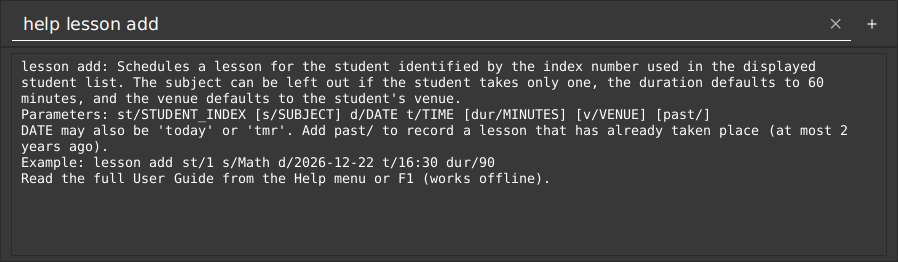
helpshows every command with a one-line summary.help COMMANDshows what the command does, its parameters and an example.COMMANDis the command as you type it, so for the lesson commands write both words, such ashelp lesson add.help lessonlists the commands that start withlesson.COMMANDis not case-sensitive, like every command word, sohelp LESSON ADDworks likehelp lesson add. For a name that is not a command, such ashelp foo, TutorFlow saysNo help available for 'foo'. Type 'help' for the full list.- To read this guide inside TutorFlow, use the
Helpmenu or pressF1. The guide opens in a resizable window and works offline. Use its Contents links to jump to any feature. External links are disabled inside the offline viewer, which shows a message when you activate one. It shows the User Guide bundled with your version of the app. ClickReload guideto return to that bundled guide. - The command list and
help COMMANDare short syntax references. The full guide includes the field limits, examples and behavior rules. - The Help window shows the guide bundled with your version of TutorFlow. Documentation changes appear in the next build of the app;
Reload guidedoes not download newer documentation into an older JAR.
Example: help lesson add shows what the command does, its parameters and an example:
Examples:
helplists all commands.help lesson moveshows how to reschedule a lesson.
Clearing all entries: clear
Deletes all students, lessons, homework, tasks, and financial history (charges and payments) from TutorFlow.
Format: clear confirm
- Typing
clearon its own deletes nothing. It only reminds you what would be deleted and how to confirm. confirmcan be written in any letter case. Anything else afterclearis rejected, so a mistyped command can never wipe your data.- TutorFlow saves the empty data straight away. An
undoimmediately after the clear can restore it in this session, but it is still wise to keep a backup. - Clearing data that is already empty works and does nothing.
clear confirmalso resets the travel buffer to 30 minutes and the saved student sort order.- If you clear data and make no other change,
undorestores it. Closing TutorFlow or making another change removes that undo opportunity.
Examples:
clearshowsThis deletes ALL students, lessons, homework, tasks, and financial history. Type 'clear confirm' to proceed.clear confirmdeletes everything.
Loading sample data: demo
Loads sample students into a new data set so you can explore TutorFlow without entering your own records.
Format: demo [confirm]
demopreviews the sample-data action.demo confirmloads the bundled sample students.- It works only on a completely new data set. Run
clear confirmfirst if you have already entered data, usedsortor changed the travel buffer. - It never replaces existing records. Use
clear confirmto remove the sample data afterwards.
Undoing your latest deletion or clear: undo
Reverses the latest deletion or clear made in this session.
Format: undo
- It applies to
delete,hw delete,task deleteandclear confirm; it does not restore lesson cancellations, lesson prep, payments or other edits. - It undoes one destructive action, in the current session only. Undoing one action uses up the available undo point.
- Any later successful change clears the undo opportunity: adding, editing or sorting leaves nothing to undo, while another deletion replaces it with a new undo point. Read-only commands such as
listandviewdo not. - If the restoration cannot be saved, the restored data stays in memory and
savecan retry the write.
Examples:
undowith no eligible action showsNothing to undo. Undo restores your latest deletion or clear, and only until you make another change.delete 2 confirmfollowed byundoshowsUndone: student deletion. Your data is back as it was before., reversing the delete.
Exiting the program: exit
Exits the program.
Format: exit
Saving the data
TutorFlow automatically saves after a command changes data. If saving fails, fix the reported problem and use save to retry before closing.
Each save is written completely to a temporary file beside the data file before replacing the previous save. If writing fails, the previous saved contents remain intact. If your file system cannot replace files atomically, TutorFlow reports a save error; move the app to a local folder that supports atomic file replacement and retry.
If a change cannot be saved, for example because the disk is full or the file is read-only, TutorFlow says Your change was applied in this session but could not be saved, and the reason. The change is still in the running app, so fix the problem (free some space, or make the file writable) and run save to retry saving. Closing TutorFlow with exit, the window close button, or File > Exit retries saving and is refused if saving still fails, so that you do not lose the change.
Read-only commands do not routinely save. After a failed save, they display an unsaved-changes reminder. Run save after fixing the problem; a successful retry clears that reminder.
Only open one instance for a data file: concurrent instances use last-write-wins and can overwrite each other's changes.
Names, venues, reasons and notes must be printable text on one line; repeated spaces are collapsed. Values that an older version accepted stay readable when an older data file is loaded.
Editing the data file
TutorFlow data is saved automatically as a JSON file data/tutorflow-v14.json relative to the folder from which TutorFlow is launched. Advanced users are welcome to update data directly by editing that data file.
Every lesson and homework assignment must link to a student in the same file through its internal student ID. Legacy lessons are linked by name and phone during migration. Missing student links are treated as invalid, as described below.
Caution:
If your changes make the data file invalid, TutorFlow does not delete it. At the next run it renames the file to tutorflow-v14.json.corrupt (or tutorflow-v14.json.corrupt.1 and so on, if that name is taken), starts with no students and lessons, and tells you where the file went. Fix the file and rename it back to tutorflow-v14.json while TutorFlow is closed to get your records back. We still recommend backing up the file before editing it.
If the original cannot be renamed (for example, while another program holds it open), saving is blocked and retries preservation before replacing it. The original bytes are retained in the .corrupt copy once the lock clears.
If TutorFlow cannot open the data file, for example because another program holds it open or you may not read it, the file can well be valid, so TutorFlow never renames it. It does not start: a window says why, nothing is changed, and nothing is saved over the file. Fix the problem and start TutorFlow again.
Furthermore, certain edits can cause TutorFlow to behave in unexpected ways (e.g., if a value entered is outside of the acceptable range). Therefore, edit the data file only if you are confident that you can update it correctly.
Archiving data files
Archiving whole data files is not supported in this version. Use archive to keep a student out of the active list, or copy the data file while TutorFlow is closed if you need a backup.
FAQ
Q: How do I transfer my data to another computer?
A: Install the app on the other computer and overwrite the data file it creates with the data file from your previous TutorFlow home folder.
Q: How do I load the sample students?
A: Run demo confirm on a new data set. It does not replace existing records; use clear confirm first if you have already entered data.
Q: Why does lesson done 1 say the lesson index is invalid after start-up or today?
A: Lesson numbers come from the last list shown. Run agenda or lesson list st/INDEX first, then use the number shown there. today does not number lessons.
Q: How do I correct a payment entered by mistake?
A: Run pay list to display the payment numbers, then pay reverse PAYMENT_INDEX. Record the payment again if it was reversed by mistake.
Q: Where is my data file?
A: It is data/tutorflow-v14.json inside the folder from which TutorFlow is launched.
Q: How do I correct a charge?
A: Run charge reverse l/LESSON_INDEX, then use charge l/LESSON_INDEX again if a different amount is needed.
Known issues
- When using multiple screens, if you move the application to a secondary screen, and later switch to using only the primary screen, the GUI will open off-screen. The remedy is to delete the
preferences.jsonfile created by the application before running the application again. - If you minimize the Help Window and then use the
Helpmenu or the keyboard shortcutF1again, the original Help Window will remain minimized, and no new Help Window will appear. The remedy is to manually restore the minimized Help Window. Thehelpcommand displays command information in the main window. - Chinese and other wide characters take up more room than Latin letters. In the result box, the columns of
agenda,todayandlesson listcan therefore look misaligned when a name, subject or venue contains them. The same happens when a name is longer than 18 characters or carries a label such as(phone ending 4567). The information shown is still correct.
Planned enhancements
These are known flaws in this version that the team plans to fix. Each one says what you see now and what TutorFlow will do instead.
- Extra text after the last parameter is blamed on that parameter. In
add n/Cat Ho p/91234569 l/S3 s/Math r/25 junk, the wordjunkbecomes part of the rate and TutorFlow answersRate must be between 0 and 9999.99 with at most 2 decimal places, e.g. 45 or 62.50.TutorFlow will instead name the extra text, for exampleUnexpected text after the last parameter: junk, and keep the rate error for a rate that is really wrong. - A new lesson is not shown when it is outside the displayed lesson list. After
lesson add, the reply saysScheduled: ...without a lesson number, and the lesson appears in the list only if the list already covers its date or student. TutorFlow will add the number of the new lesson to the reply, and show the lesson in the list when it fits the filter, solesson done,lesson moveandlesson cancelcan be used straight away. - Undo only reverses the latest deletion or
clear confirm. It cannot undo an edit, a lesson change or a payment, and it forgets the deletion as soon as you make another change. TutorFlow will keep a history of recent changes, so thatundocan step back through several of them in one session. - Wide characters make the result box columns look misaligned. The columns of
agenda,todayandlesson listare padded by the number of characters, and a Chinese character is wider than a Latin letter. TutorFlow will pad by the width on screen, or show these results in a table. - Long results are cut off. When a list has more than 30 lessons, only the first 30 are shown, followed by how many more there are. TutorFlow will let you ask for the next part, for example with
lesson list ... page/2, instead of repeating the command with a narrower filter.
Command summary
Students
| Action | Format, Examples |
|---|---|
| Add | add n/NAME p/PHONE_NUMBER l/LEVEL s/SUBJECT... r/RATE [e/EMAIL] [v/VENUE] e.g., add n/James Ho p/22224444 l/S3 s/Math s/Physics r/55 e/jamesho@example.com v/Online |
| Delete | delete INDEX [confirm]e.g., delete 3, delete 3 confirm |
| Edit | edit INDEX [n/NAME] [p/PHONE_NUMBER] [e/EMAIL] [l/LEVEL] [s/SUBJECT]... [r/RATE] [v/VENUE]e.g., edit 2 n/James Lee e/jameslee@example.com |
| Find | find KEYWORD [MORE_KEYWORDS]e.g., find James Jake |
| List | list [l/LEVEL] [s/SUBJECT] [archived/|all/]e.g., list, list l/S3 s/Math, list archived/ |
| View | view INDEXe.g., view 1 |
| Sort | sort [asc|desc]e.g., sort desc |
| Archive / Restore | archive INDEX, restore INDEXe.g., archive 3, list archived/ then restore 1 |
| Student aliases | student add|edit|delete|find|view|list|archive|restore ... (with the same arguments)e.g., student list l/S3 |
| Remark | remark INDEX r/REMARKe.g., remark 1 r/Prefers morning lessons |
Lessons
| Action | Format, Examples |
|---|---|
| Lesson add | lesson add st/STUDENT_INDEX [s/SUBJECT] d/DATE t/TIME [dur/MINUTES] [v/VENUE] [past/]e.g., lesson add st/1 s/Math d/2026-12-22 t/16:30 dur/90, lesson add st/1 d/tmr t/16:30, lesson add st/1 d/2026-10-12 t/16:30 past/ |
| Lesson repeat | lesson repeat st/STUDENT_INDEX [s/SUBJECT] d/START_DATE t/TIME [dur/MINUTES] [v/VENUE] count/COUNT [every/WEEKS]e.g., lesson repeat st/3 d/2026-12-03 t/16:00 count/4, lesson repeat st/3 d/tmr t/17:00 dur/90 count/10 every/2 |
| Agenda | agenda [d/DATE] [week/]e.g., agenda d/2026-12-22 week/ |
| Today | today |
| Lesson list | lesson list st/STUDENT_INDEX [all/]e.g., lesson list st/1 all/ |
| Lesson move | lesson move INDEX [d/DATE] [t/TIME] [dur/MINUTES] [v/VENUE]e.g., lesson move 1 d/2026-12-24 t/17:00 |
| Lesson cancel | lesson cancel INDEX [r/REASON]e.g., lesson cancel 1 r/Student unwell |
| Lesson series cancel | lesson series cancel LESSON_INDEX confirme.g., lesson series cancel 3 confirm |
| Lesson done | lesson done INDEX [n/NOTES]e.g., lesson done 1 n/Covered quadratic roots |
| Lesson missed | lesson missed INDEXe.g., lesson missed 1 |
| Lesson prep | lesson prep INDEX n/NOTESe.g., lesson prep 1 n/Bring the mock paper |
Homework
| Action | Format, Examples |
|---|---|
| Homework add | hw add st/STUDENT_INDEX desc/DESCRIPTION due/DATEe.g., hw add st/1 desc/Algebra Q1-10 due/tmr |
| Homework list | hw list [st/STUDENT_INDEX] [overdue/|outstanding/]e.g., hw list, hw list st/1 overdue/ |
| Homework edit | hw edit INDEX [desc/DESCRIPTION] [due/DATE]e.g., hw edit 1 due/tmr |
| Homework status | hw status INDEX s/assigned|submitted|reviewede.g., hw status 1 s/submitted |
| Homework feedback | hw feedback INDEX f/[FEEDBACK]e.g., hw feedback 1 f/Revisit negative indices, hw feedback 1 f/ to clear |
| Homework delete | hw delete INDEX [confirm]e.g., hw delete 2, hw delete 2 confirm |
Tasks
| Action | Format, Examples |
|---|---|
| Task add | task add st/INDEX|lesson/INDEX|hw/INDEX|pay/INDEX desc/TEXT [due/DATE]e.g., task add st/1 desc/Call parent due/tmr, task add pay/1 desc/Remind about fees |
| Task list | task list [all/] [st/INDEX]e.g., task list, task list all/, task list st/1 |
| Task edit | task edit INDEX desc/TEXT [due/DATE|due/-]e.g., task edit 1 desc/Call parent again due/- |
| Task done | task done INDEXe.g., task done 1 |
| Task delete | task delete INDEX [confirm]e.g., task delete 1, task delete 1 confirm |
Finance
| Action | Format, Examples |
|---|---|
| Balance | balance st/INDEXe.g., balance st/1 |
| Charge | charge l/LESSON_INDEX [amt/AMOUNT], charge reverse l/LESSON_INDEXe.g., charge l/1, charge l/1 amt/50, charge reverse l/1 |
| Payment | pay st/STUDENT_INDEX amt/AMOUNT [d/DATE] [n/NOTES]e.g., pay st/1 amt/50 |
| Payment list / reverse | pay list [st/STUDENT_INDEX], pay reverse PAYMENT_INDEXe.g., pay list st/2, pay reverse 2 |
| Withdraw | withdraw st/STUDENT_INDEX amt/AMOUNT [d/DATE] [n/NOTES]e.g., withdraw st/1 amt/20 |
| Dues | dues |
General
| Action | Format, Examples |
|---|---|
| Clear | clear confirm |
| Help | help [COMMAND]e.g., help, help lesson add |
| Demo | demo [confirm]e.g., demo, demo confirm |
| Undo | undo |
| Save | save |
| Exit | exit |
| Travel | travel buffer/MINUTESe.g., travel buffer/30 |
Upgrading from an older data file
TutorFlow reads data/tutorflow-v14.json. If it is absent, TutorFlow reads the legacy data/addressbook.json, assigns stable internal student and lesson identifiers, and saves a new tutorflow-v14.json. The legacy file is left untouched; if both files exist, the v1.4 file takes precedence. Keep both in your backup.
Files without later records, such as homework or financial history, start with empty records for those features. An unsupported newer schema stops startup and leaves the original file unchanged. Invalid content uses the recovery flow described under Editing the data file. A file that cannot be opened is never renamed or overwritten.
If the first migration save fails, TutorFlow reports unsaved changes; fix the write problem and use save before closing. The current file is created only after a complete atomic save, so a restart can resume from the untouched legacy source.